Solid Symposium 2026 · London
From Generic Access to Tailor-Made Dashboards
The 5 Levels — In PodOS
You’ve seen the spectrum. Here’s what PodOS provides at each level.
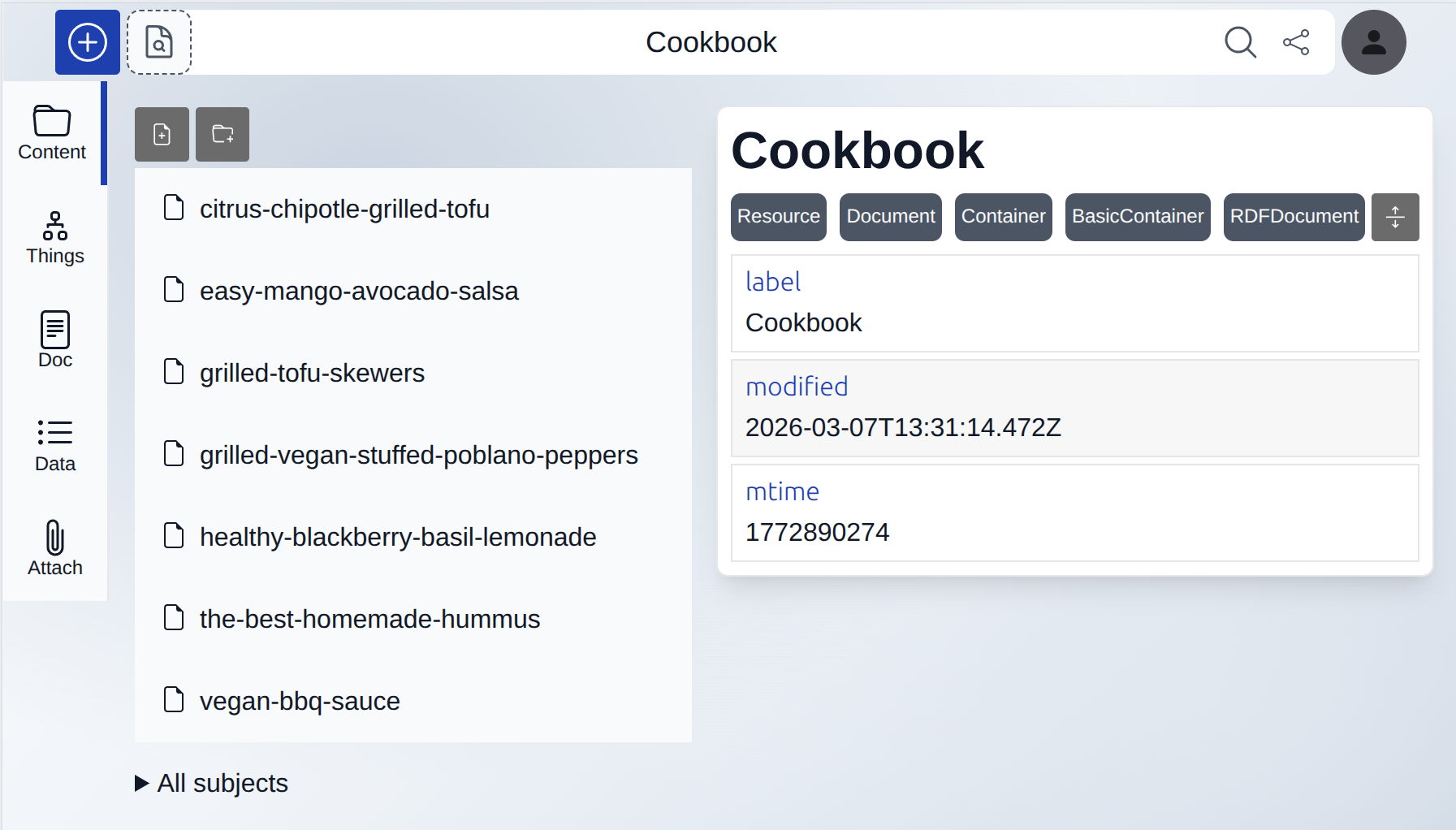
PodOS Browser
PodOS Browser lets you navigate and manage any Solid Pod
PodOS Elements
HTML elements that talk to Solid data — no JavaScript needed
<pos-app>
  <pos-resource uri="https://alice.example/profile/card#me">
    <h1><pos-label></pos-label></h1>
    <pos-picture></pos-picture>
    <pos-value predicate="vcard:email"></pos-value>
  </pos-resource>
</pos-app>Real Example: Planning a Party
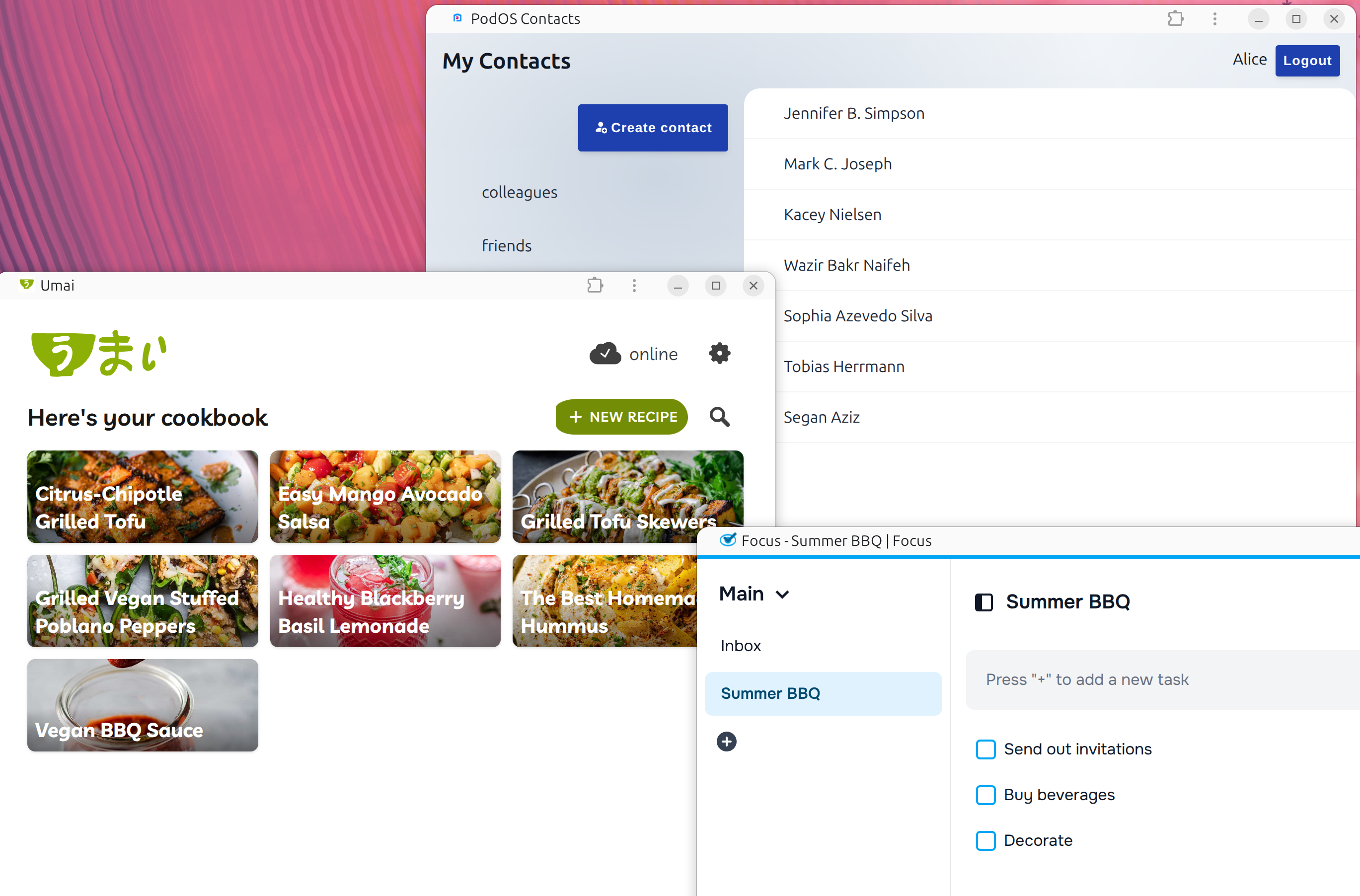
Your party data is scattered across specialized apps
Recipes
Tasks
Contacts
Party Step 1: Data from Existing Apps
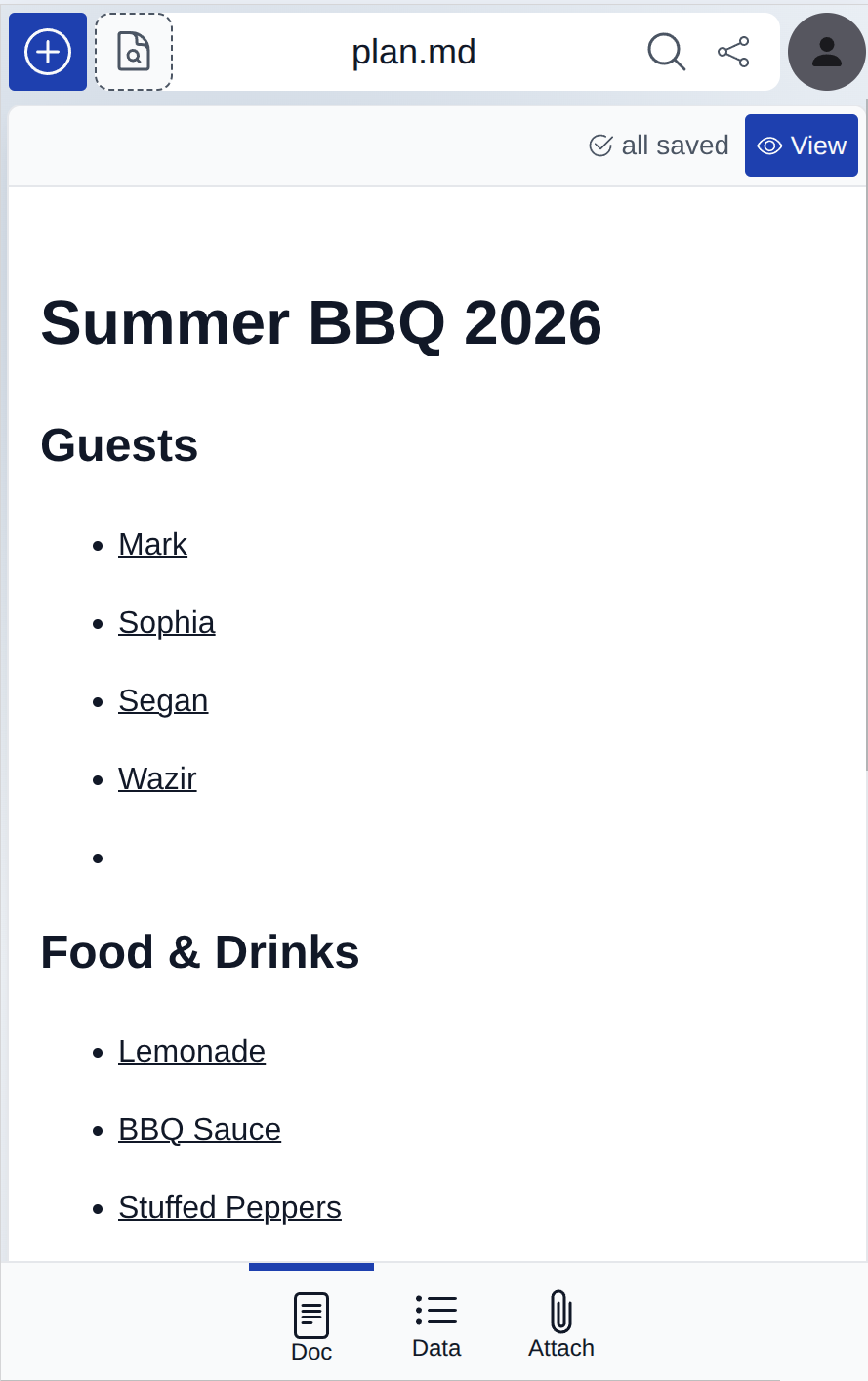
Party Step 2: Organize with Markdown
Link everything together in a markdown file
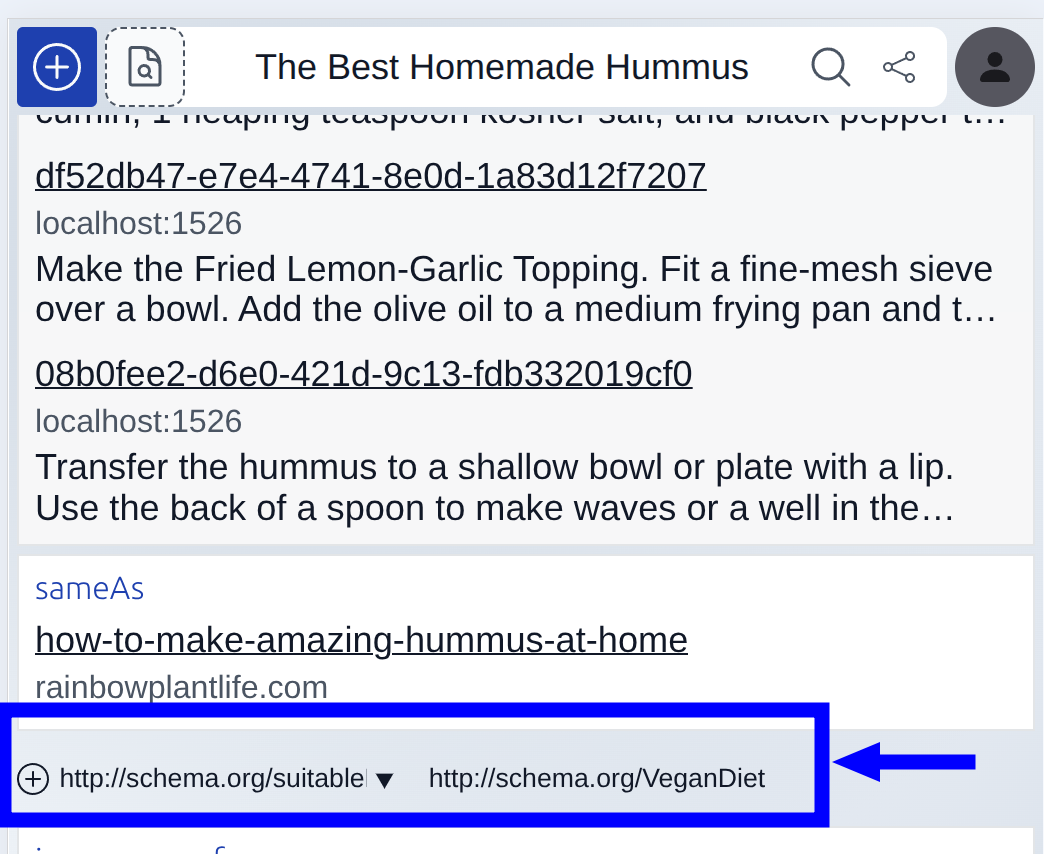
Party Step 3: Extend Beyond Apps
Add data that specialized apps don't support
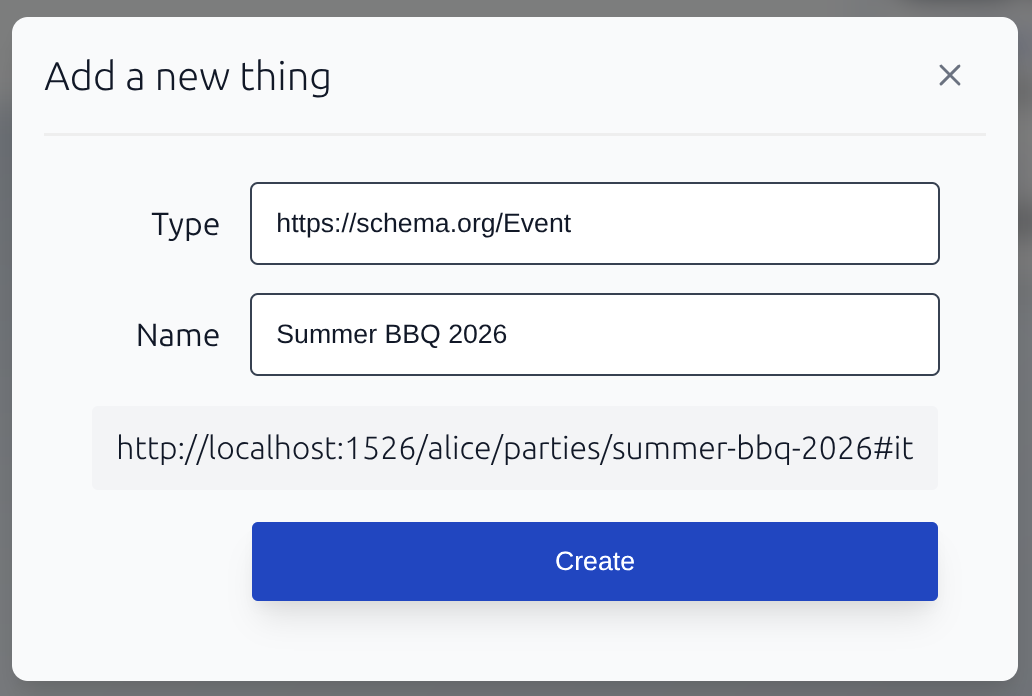
Party Step 4: Create an Event
One resource that connects recipes, tasks, and contacts
Party Step 5: Everything you need in one HTML page, built for your party
<pos-app>
<pos-resource uri="...bbq#it">
<h1>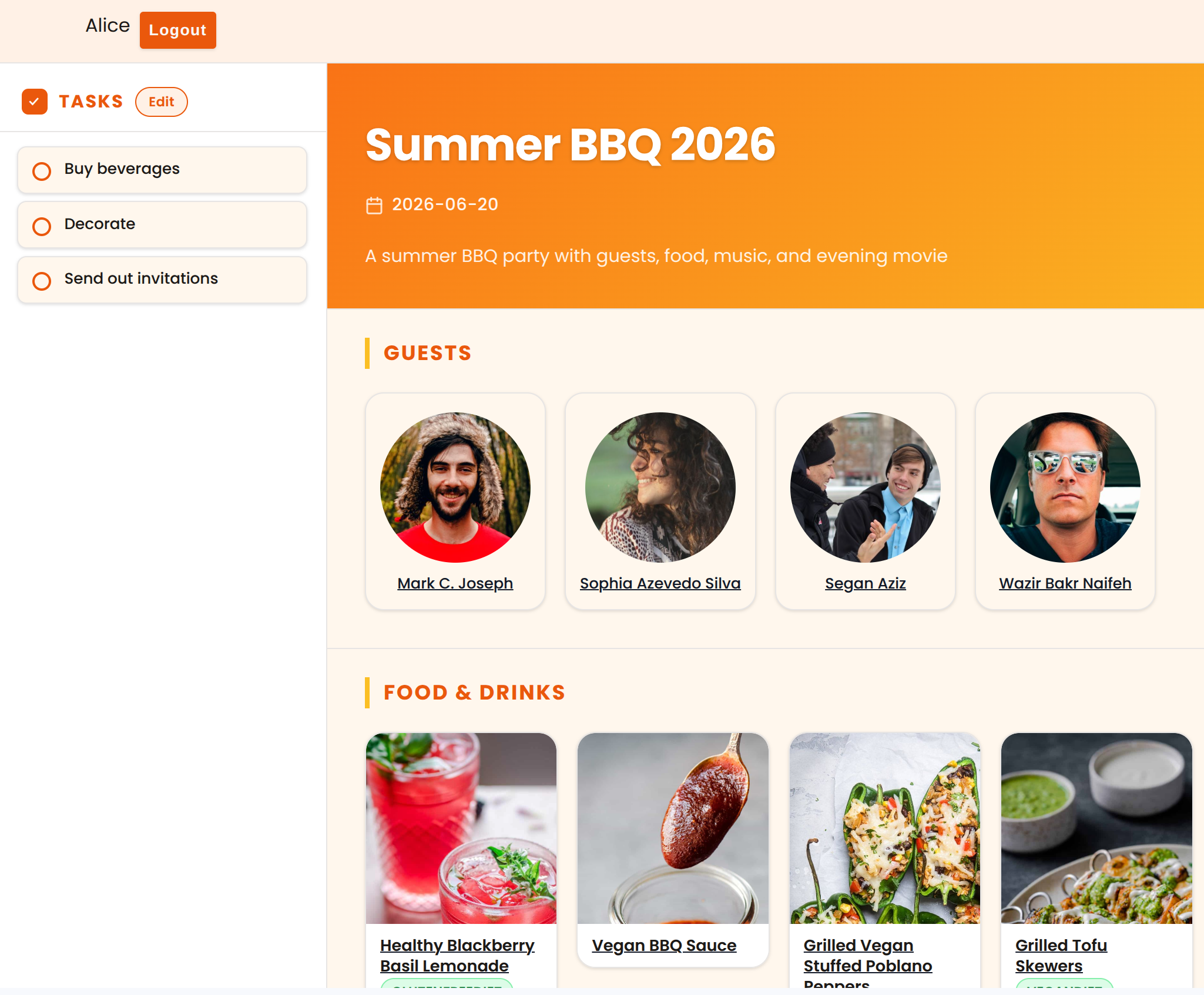
Manage the complete lifecycle of things you own
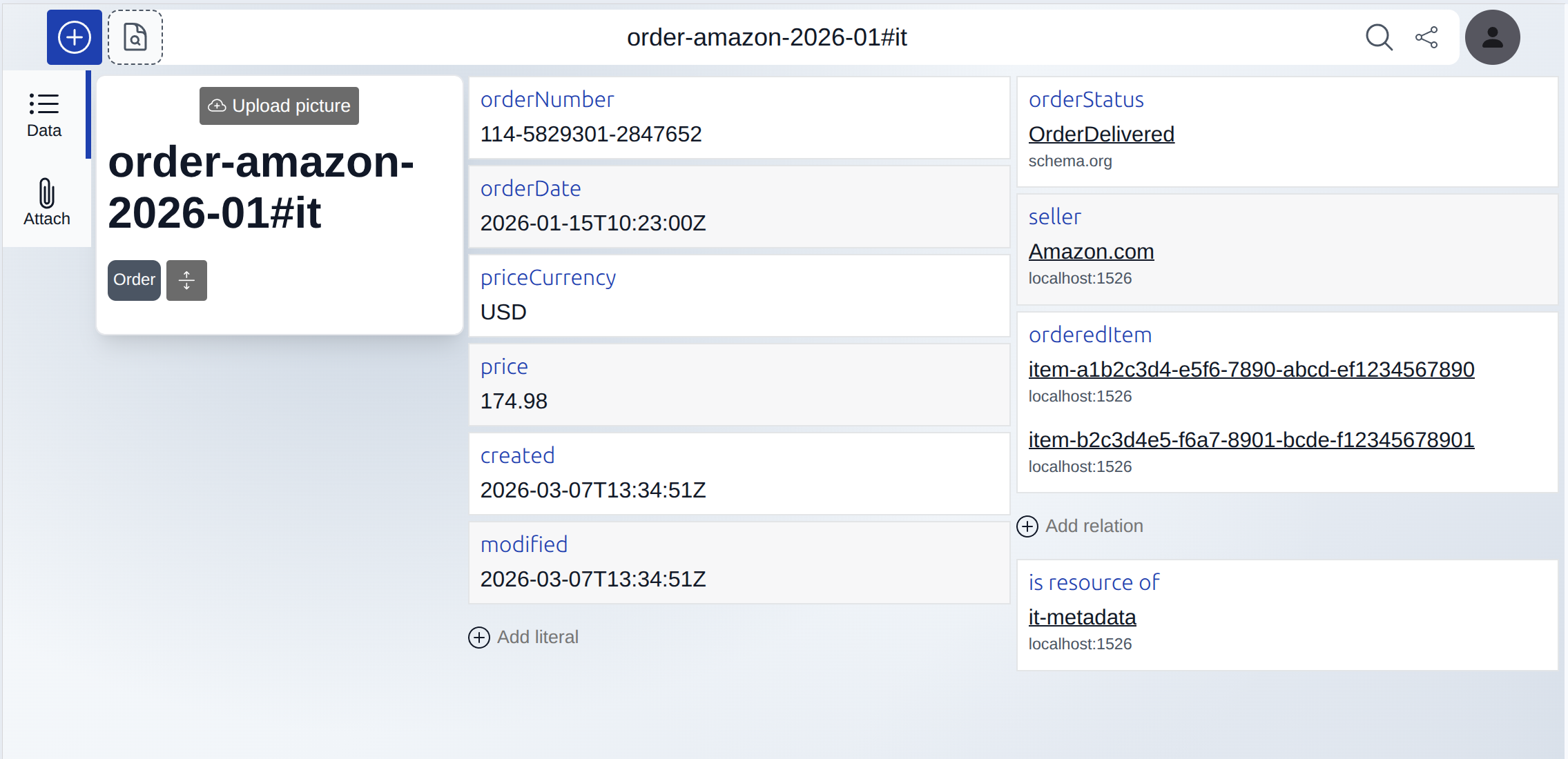
Inventory Step 1: Orders from Solid Shops
Order confirmations from Solid-compatible shops are automatically stored in your pod
Your purchase history lives in your pod from day one
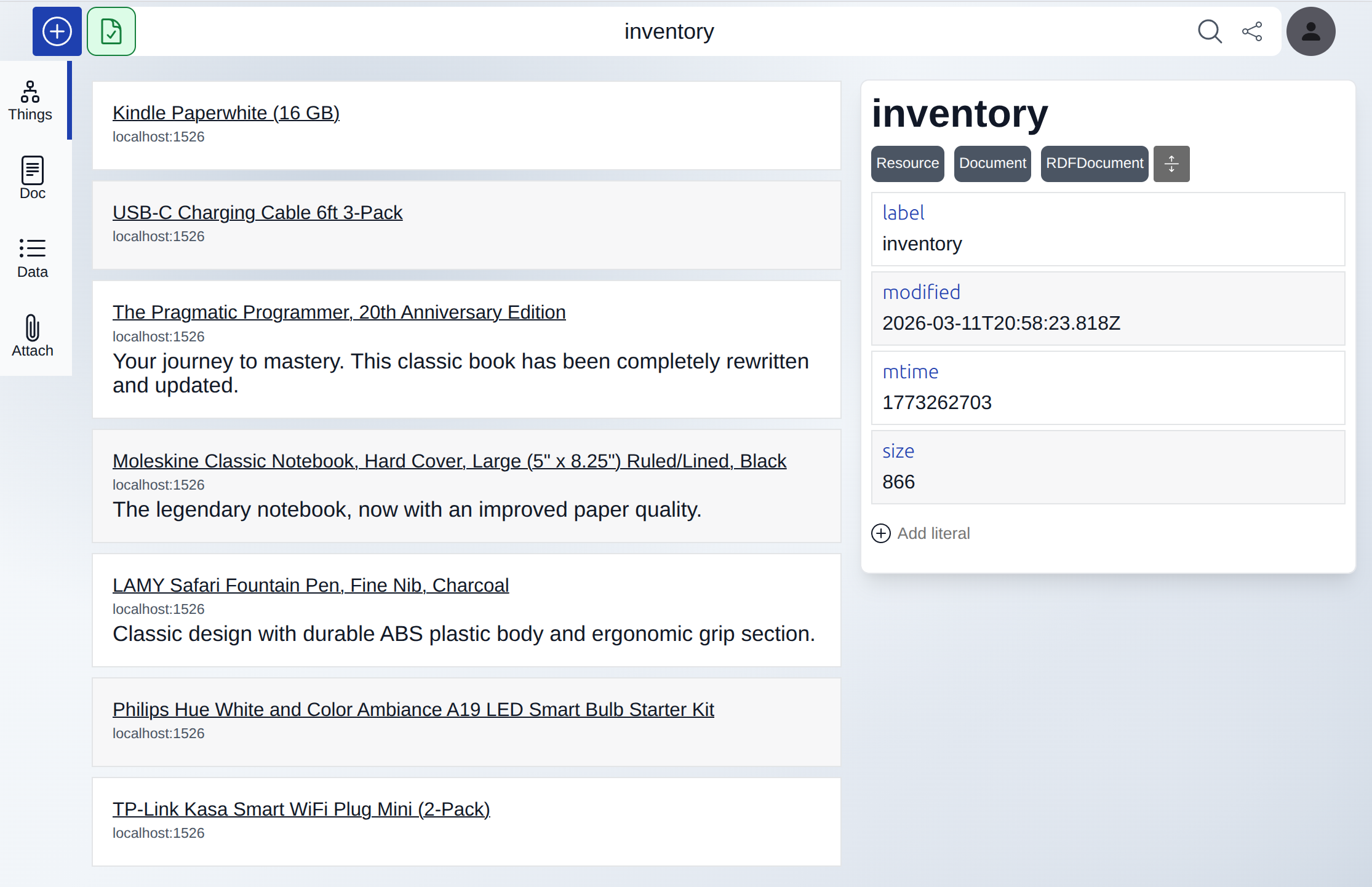
Inventory Step 2: Build Your Inventory
Create an inventory document, indexing items from your orders
Inventory Step 3: Attach Manuals
Use PodOS attachment tool to link manuals and documentation
All documentation connected to inventory items
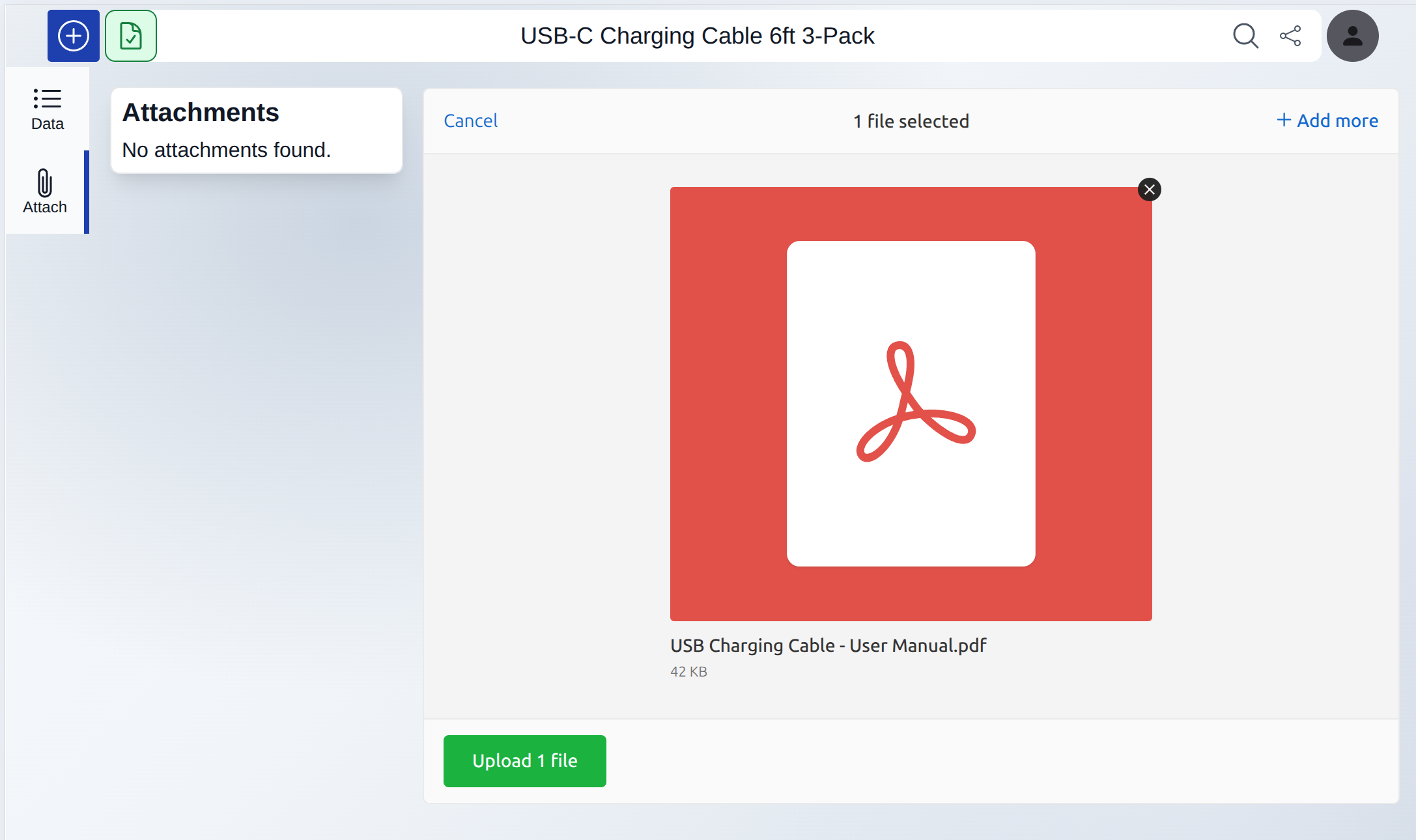
Inventory Step 4: Your Dashboard
A dashboard for more than just orders:
Follow the links to follow the life cycle of your belongings
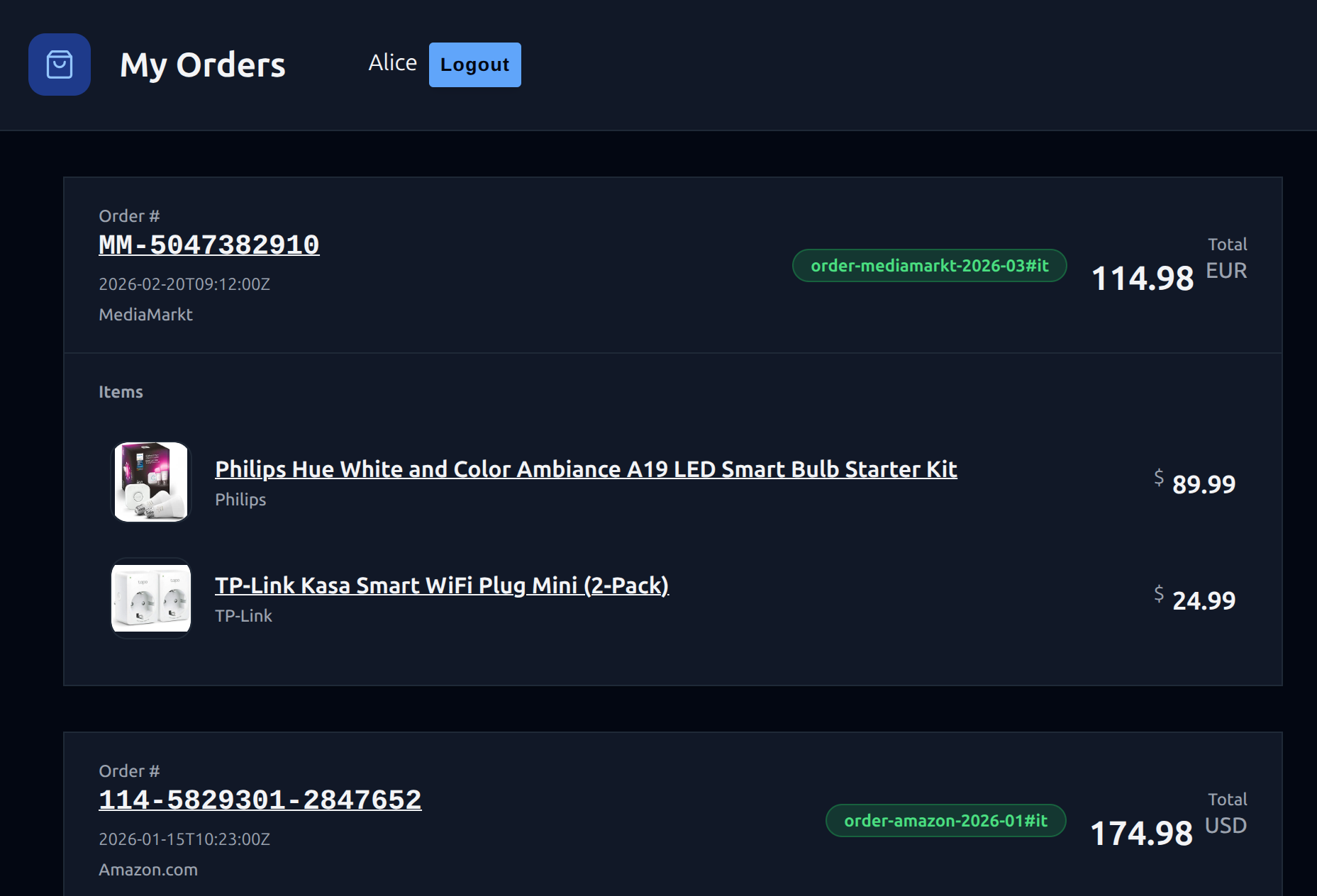
Why Custom Dashboards Work
General-Purpose Software
Custom Dashboards
Level 3: Tailor-made interfaces for your unique needs
This Slide Is a Dashboard
Time
Description
Presenters
The Full Picture
Real tasks span multiple levels. PodOS supports you across all of them.
Your Data, Your Interface
What you’ve seen
- Work on multiple levels
- Real world examples
- HTML elements facilitating Solid data
- Fill the gaps between the apps
What’s next
- Hands-on session
- Build your own dashboard
- Solve a real problem with PodOS
- Take it home and keep building
Let’s build something together.
Hands-On Session Setup
Scan to visit repository
Follow the README instructions to set up your local environment.